
Looking to upgrade or add RAM to your desktop or laptop computer? This article will help you to address some of the most common questions of how to select the correct RAM for your computer.
Q: What Is RAM?
A: The acronym RAM references Random Access Memory, and it is used for temporary storage by the CPU and GPU in computer functions. Some characteristics of RAM include:
- RAM or random-access memory is used for temporary storage for the CPU and GPU.
- RAM is continuously overwritten and refreshed.
- Much faster than any long-term storage device.
- RAM can only hold data while powered.
Q: What is the difference between desktop RAM and laptop RAM?
A: Desktops use DIMM, an acronym for Dual In-Line Memory Module.
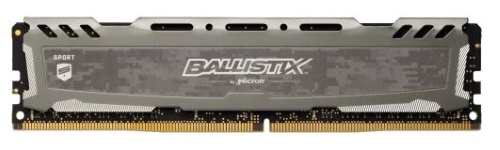
A: Laptops use SO-DIMM, an acronym for Small Outline Dual In-Line Memory Module.

Q: What are the different types of RAM?
A: There are several different types of RAM. Most commonly, RAM is referred to as one of these types:
DDR
DDR2
DDR3
DDR4
DDR5
Most, if not all, modern PCs today use DDR5 RAM, though DDR4 motherboards are still available for purchase. When upgrading, make sure to determine what type of RAM you currently have installed. DDR3 is not forward compatible with DDR4 devices, and DDR4 is not forward compatible with DDR5 devices. DDR5 is not backward compatible with DDR4, and DDR$ is not backward compatible with DDR3 motherboards. They are not compatible to run together on the same system.
Q: Which Type of RAM Do I Need?
A: To determine what RAM is compatible with your existing system, you can follow these steps:
From the Windows Start menu, search for System Information on your computer and open the app.
Windows 10
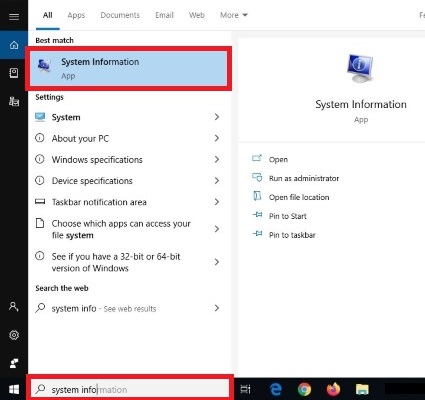
Windows 11
System Information will look the same in Windows 10 and 11:
Under System Summary, you will find your Processor.

Using this information, search for your specific processor on the manufacturer's website to see what RAM is compatible with your processor. Motherboards also have compatibility requirements; however, they align directly with the corresponding requirements of compatible processors.
Q: What Speed of RAM do I need to purchase?
A: Several factors come together to determine the best answer:
- CPU and Motherboards have limitations, but most modern CPU’s can support from 64GB up to 128GB. (Latest 9th Gen Intel CPU and 3RD Gen AMD Ryzen) If you have concerns about the limits of your CPU or motherboard you can search the model number on the manufacture’s website.
- The clock speed of RAM is measured in MHz.
- The faster your RAM speed, the faster the system will function. If you are gaming, then 3000MHz will be a great middle ground.
- Other programs will perform better with faster RAM. Determine what the purpose of your system is, then select your speeds from there. Remember you can always overclock your RAM.
Q: What Is the Difference Between Single RAM and Dual Channel RAM?
A: There are several differences to be aware of:
- Single channel is using one module of RAM, two is dual channel, and four would be quad channel. (Not all CPU/Motherboards support quad channel memory, you can run 4 sticks without quad channel, it would be 2 pairs running dual channel)
- When it comes to gaming, single channel will be a fine starting ground. When applying your PC to professional jobs that needs to transfer more data constantly, then dual or quad channel will be the better option.
- Like a roadway, using one lane at rush hour causes traffic to back up. Same goes for RAM. Say if you are using one large capacity module (16GBx1), you can only transfer so much data between CPU and RAM. However, if you were to have two lower capacity modules (8GBx2) you are effectively doubling the amount of information that can be processed at one time. As a result, allowing you to complete more processes while also doubling the speed.
-
To prevent bottlenecking, use dual or quad channel.
Q: What about RAM Timings and Latency?
A:
- CAS / CL or Column Access Strobe latency is the amount of time that needs to pass from the read command being issued to the data being available for the processor to access.
- DDR4 and DDR5 latency is measured in clock cycles rather than nanoseconds.
- The lower the latency, the faster your RAM can move on to the next process.
- Each RAM module has a rating for timings. Timing is expressed as a series of four numbers, like 5-5-5-15. This is how latency is measured. A high clock speed with higher frequency is better than low clock speed and low frequency.
Q: Should I focus on low latency or high clock speed for my RAM?
A: The speed rating of your RAM module is an expression of its data transfer rate. Latency is how fast a RAM module can access its own hardware. Lower numbers result in faster data access. The faster the RAM can access data, the faster that data is transferred to your CPU. Having more RAM available, or think of it as higher capacity, with a fast clock speed is recommended over less RAM or lower capacity and lower latency.
Remember, RAM is typically the easiest component to upgrade in your system. If you are building a budget PC go for higher capacity first if you have to choose. It is better to have two modules than one. Depending on the task, more RAM may not be needed. For gaming, you will be fine with 16-32GB. For other more intensive programs that need to transfer a lot of data, 64GB or more can result in faster performance.