
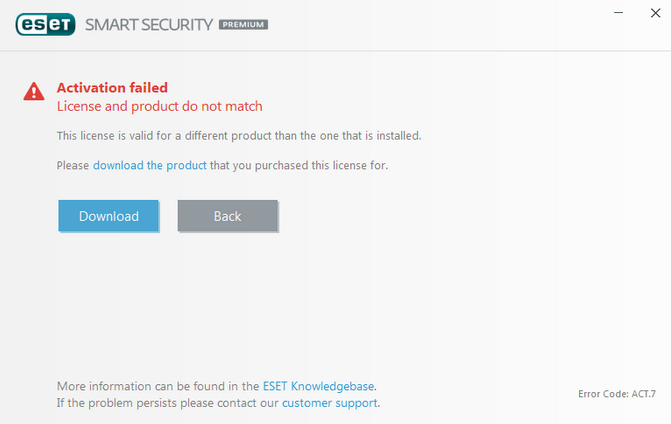
This error typically occurs if you have the incorrect version of ESET installed for the key you are trying to activate.
If this is your first time activating and installing ESET, please Visit our guide.
If you are interested in renewing or extending your license, this guide will walk you through the process!
This will guide you through activating ESET when receiving an ACT.7 Error or “License and product do not match” message.
Part 1 - Finding your current ESET license
To find your current license key please follow the steps below!
Finding Your Current ESET License Key
home.eset.com will allow you to find an active ESET license key that is connected to your email. All you would need to do is log in and view your subscriptions!
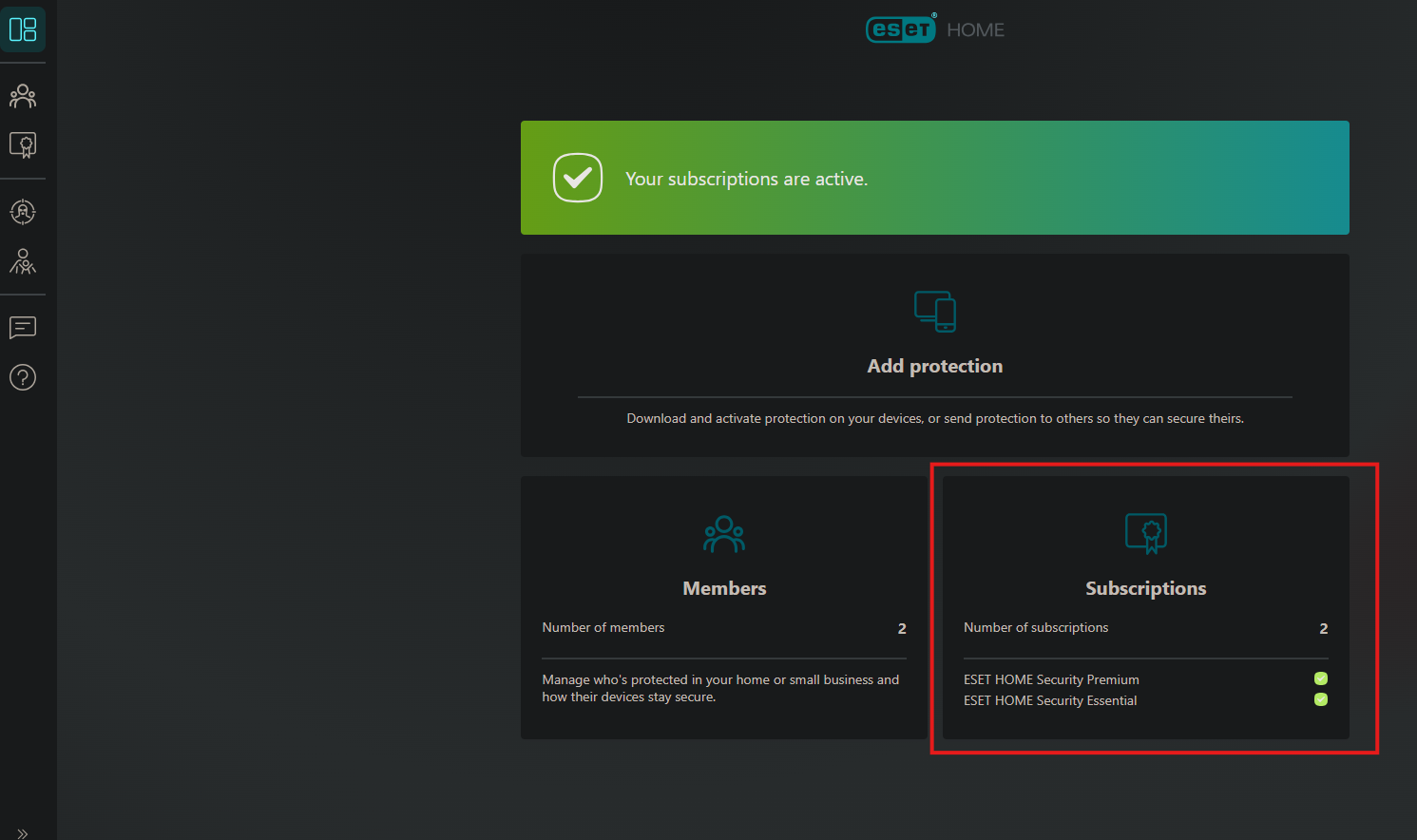
Click Open subscription under the one you want to get the key for.
You will see your key in the details on the left side.
Part 2 - Extending/Renewing your current License
On the same page where you found your License key, you will see a Renew button, click on it:
You will be taken to a Page letting you know the remaining number of days on your subscription, as well as providing you options for how many years/devices you want, and if you want to upgrade, customize it how you want, click the button in your chosen box and move through checkout:
For information on installing ESET please see our guide.