
If you're having trouble with an Office app like Word, Excel, or Outlook, restarting the app can often help. If that doesn’t solve the issue, repairing the app is a good next step. This article explains how to repair Office 2019/2021 or Office 365 on Windows 11. There are two types of repairs you can try to fix problems with Office. Keep in mind that while the repair is running, Office apps won’t be available.
Here is how to start this repair:
1. Right-click on the Start button, typically found on the taskbar at the bottom of the screen, then click on Apps and Features.

2. Locate the Office software in the list of apps, typically listed under Microsoft Office 365 or Office 2019/2021. Click on the Office app and select Modify.

3. Select either a Quick Repair or an Online Repair, then click on Repair.
The online repair is generally a more in-depth and longer process. Quick Repair will attempt to repair your Office programs without uninstalling anything. If you are worried about losing settings such as certain formats in Word and Excel or your Outlook settings, use Quick Repair. Online Repair will uninstall Office as part of the repair and you may lose your settings for your Office programs.

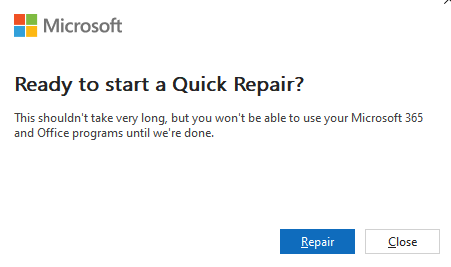
4. On the "Ready to start" window, select Repair to begin the process.
5. When finished, the Office repair program will give a completion message.
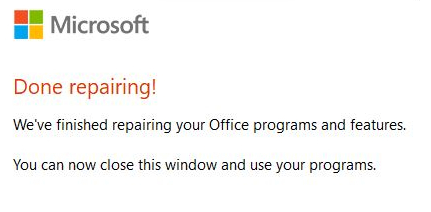
6. You can now reopen your programs. If you tried a Quick repair and it didn't work, try the online repair. If that also fails, you may need to uninstall and re-install Office.